Install & Sign In
How to get there
- Install Budget & Expense Tracker from Google Play and open it
- First launch only: swipe through the 3 intro slides and tap Get Started (or tap Skip at the top-right)
- On the login screen, tap Sign in with Google, or use the Email tab (email address + password)
- No account yet? Tap Sign Up at the bottom and choose With Email
On first launch you see three short intro slides, then the login screen titled Budget & Expense Tracker. Tap Sign in with Google for the quickest start, or use the Email tab with your email address and password (there is a Forgot Password? link). If a security check appears, complete it, then tap Continue. New users tap Sign Up, register With Email (full name, email and password) and then confirm the link sent to their inbox. Signing in with a mobile number and SMS code is not available yet, so use Google or email. The app never asks for your bank login. After you sign in once, the app opens straight to Home.
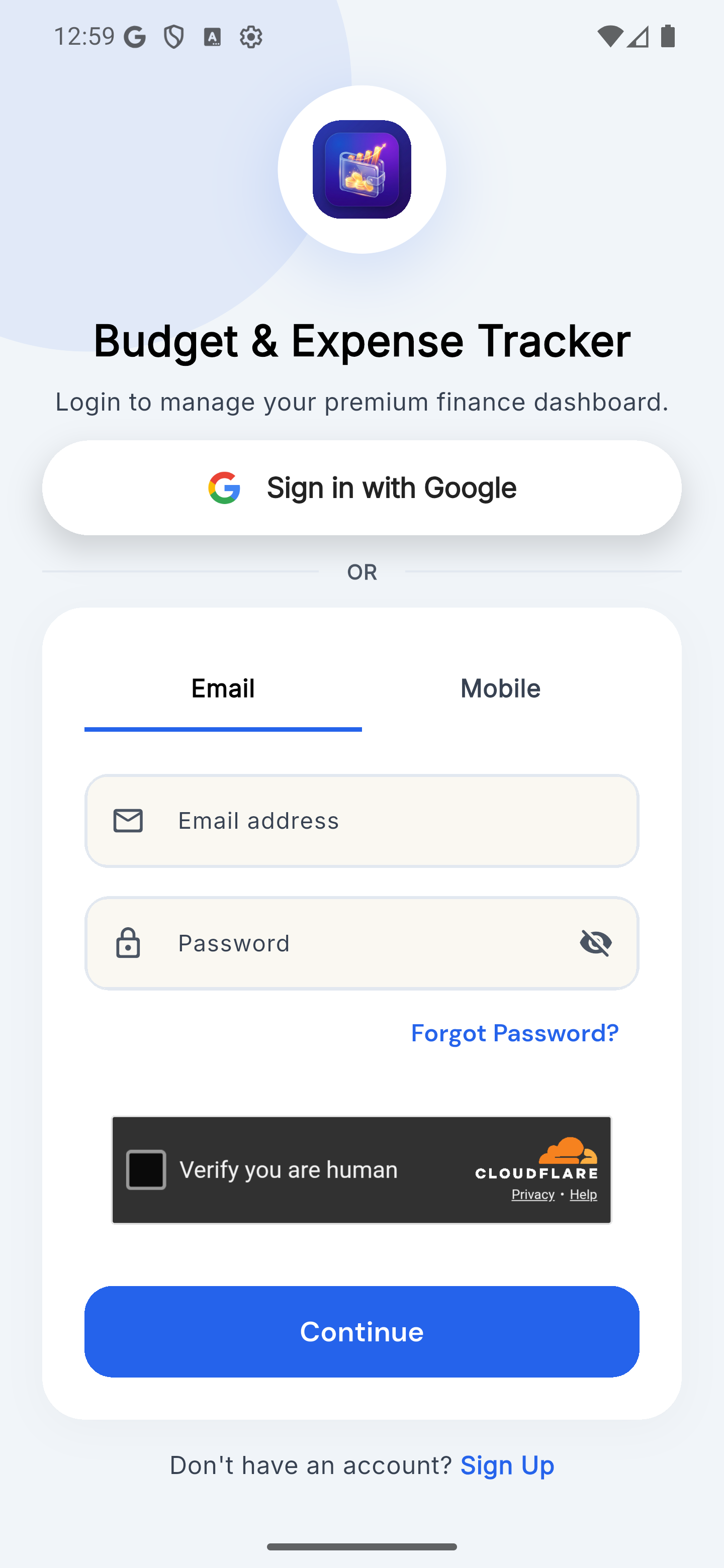
Login screen with the Sign in with Google button, Email and Mobile tabs, email and password fields, a Forgot Password? link, a “Verify you are human” check, the Continue button and a Sign Up link